


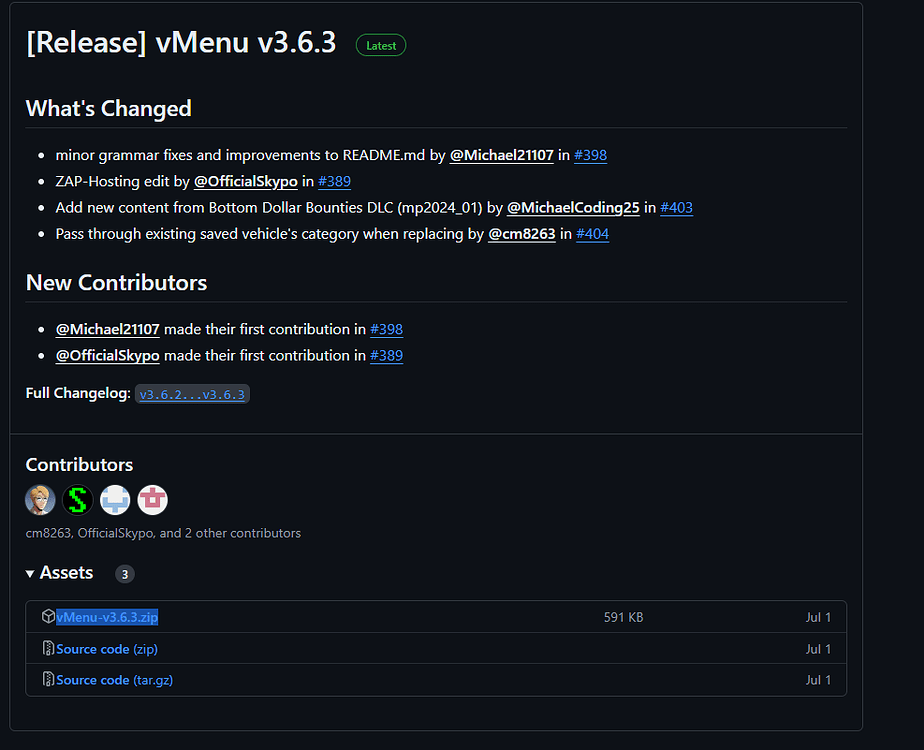
Download the Highlighted link.
Now go to you Server’s Resource folder and Create a Directory named [Menus] as can be seen in the following photo
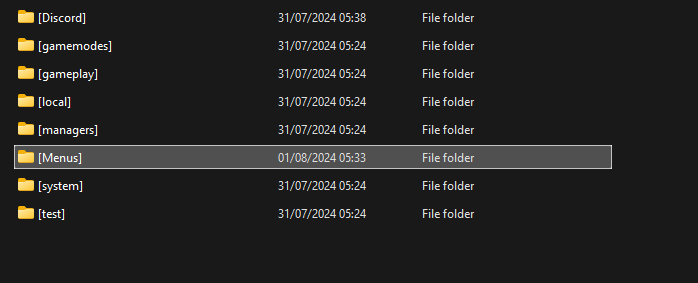
Now you are going to want to Create a folder in that Directory called vMenu ( It cannot be named anything else! )
You now want to Drag and Drop the Resources from the .rar File you downloaded from the Github
Now you are going to want to open the Config folder and Move the Permissions.cfg File to the same Area as your Server.cfg ( This is not needed but is Quite Convenient later on )

and move it here
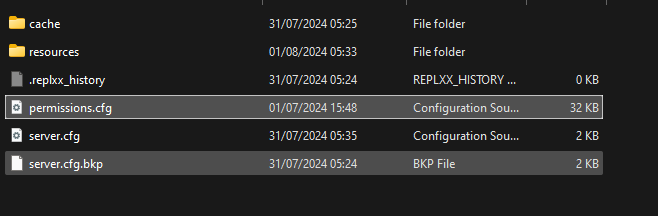
Now you are going to open up your Server.cfg File.
If you have moved your Permissions.cfg File to the same place as your server.cfg you are going to want to paste the following into your server.cfg near the top
exec permissions.cfg
If you have left the permissions.cfg File in the vMenu/Permissions folder then you are going to want to paste the following into your server.cfg
exec resources/[Menus]/vMenu/config/Permissions/permissions.cfg
Or if your file path is different then Follow the following format
exec <File Path>/permissions.cfg
Inside of your Server.cfg you now want to have an Ensure/Start line on the resource.
So add
start [Menus] or ensure [Menus]
into your server.cfg Choose the one that you would prefer
So now that you have done this you have now Officially installed vMenu.
But! You have not Got any permissions set up. So lets get into that now.
VMENU PERMISSIONS
Section 1 : How to add Ace Groups into vMenu?
First of you are going to open your permissions.cfg file and yes it may look scarry at first and that is normal but @Vespura and the people that have worked on vMenu have layed out the vMenu permissions.cfg Extreamly nice and easy to understand.
So now that you have opend it you are going to scroll down untill you see
#############################################
# SETTING UP GROUP INHERITANCE #
#############################################
## Setup group inheritance, it's probably best you don't touch this unless you know what you're doing.
Now you are going to want to open up your Discord_ace_Perms config.lua and Look for the group names that you have previously setup in the Discord Ace Perms Guide You will need to have this setup in order for this to work.
As you can see below i have all these groups that i am going to add into the Group Inheritance and explain how you will do this
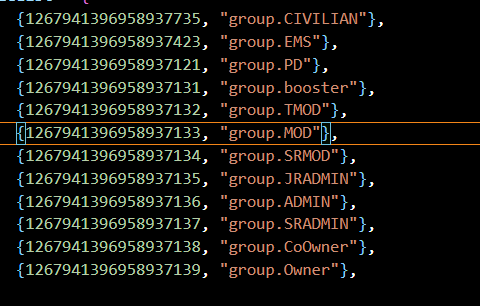
So first of all you are going to want to have your HIGHEST role at the top and your LOWEST role at the bottom.
And it will look a little bit like this
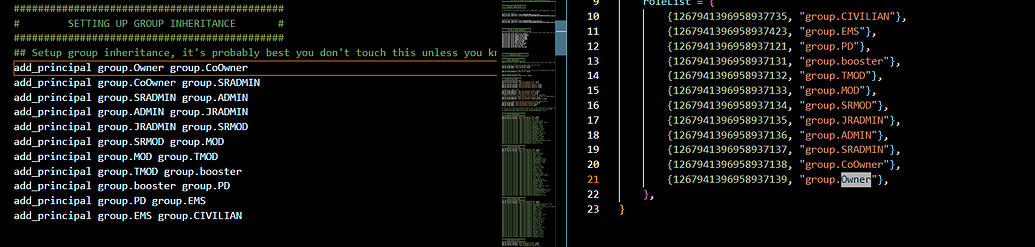
Bellow i will attach the text of how mine looks so that you can copy it and edit to match your Groups for your own server ( Remember that your groups need to match what you have in discord ace perms. )
add_principal group.Owner group.CoOwner
add_principal group.CoOwner group.SRADMIN
add_principal group.SRADMIN group.ADMIN
add_principal group.ADMIN group.JRADMIN
add_principal group.JRADMIN group.SRMOD
add_principal group.SRMOD group.MOD
add_principal group.MOD group.TMOD
add_principal group.TMOD group.booster
add_principal group.booster group.PD
add_principal group.PD group.EMS
add_principal group.EMS group.CIVILIAN
Now that you have added these lets get started on The permissions.

 GAZDUIRE JOCURI / VPS / GAZDUIRE WEB / SERVERE DEDICATE - Stock NELIMITAT / Valabil comandati pe


